
Product
Material details in the widget
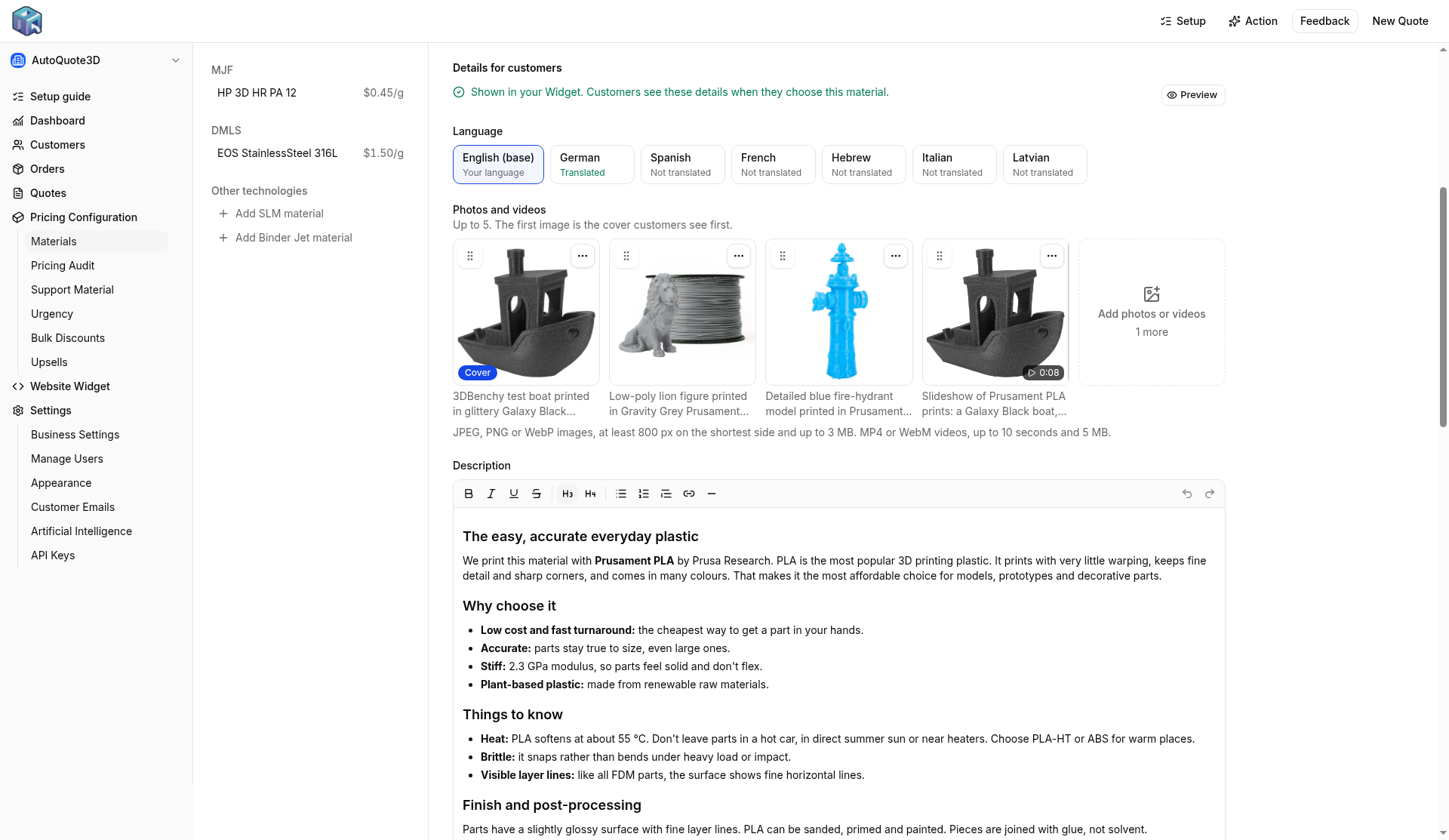
Add photos, short videos, specs, and a datasheet to a material, and customers can open them from the widget before they order.
"Is your PETG food safe?" "What's the tensile strength of the nylon?" "Can I see what the matte finish looks like?" Customers ask before they order, and the answer usually lives in a PDF on your desktop.
What customers see
Material cards in the widget get a cover image and a See details button. It opens photos and short videos, tags like "Food safe", a description, spec tables, and a datasheet download. On phones it's a drawer you can swipe.
How to set it up
- Open Pricing Configuration, then Materials, and pick a material.
- Hit Edit details, or scroll to Details for customers.
- Add at least one image and a description. Details only show once a material has both.
- Add specs, tags, videos (up to 10 seconds), and a PDF datasheet if you have one. Up to 5 images and videos per material.
- Hit Preview to see it the way customers will.
If you sell in more than one language, you can translate the text and add a datasheet per language.
This is on the Professional and Service Bureaus plans.
A new Materials page
The Materials page is a list now, grouped by technology in the order customers see them. Search forgives typos, each row shows the lowest price per gram, and you drag rows to set the order. The detail pane has Duplicate, Hide from customers, layer heights, colors, and infills in one place.
Or ask Claude or ChatGPT
Add a description, these specs, and the datasheet at https://example.com/pa12-tds.pdf to our PA12.
Open your shop to add details to a material. If you want a hand, write support.